















If you don’t use email templates already for your business, I am about to introduce you to a game changer. One that can save you huge amounts of time. This post shows you how to create email templates using both outlook and gmail.
Why use email templates?
If you find yourself constantly typing the same emails, then you need templates in your life. You can use templates for anything that you regularly send. I use them to send my pricing in response to a query. A simple but polite no thanks for jobs that I turn down. And I use them for my pitch outline and just tweak a few bits before sending.
All you have to do is save your email that you send regularly as a template (more on that later), so next time you want to send it, instead of typing everything out, you simply select the template you want to use and thank your past self for saving you valuable time.
It cuts down on admin time, and ensures you don’t forget any information that’s really important such as your terms and conditions. It also keeps consistency for your brand.
How to create email templates in Outlook
I use Outlook as a preference, but that being said the templates on gmail are better. Simply because there is no limit to how many you can have like there is in Outlook.
Creating the template
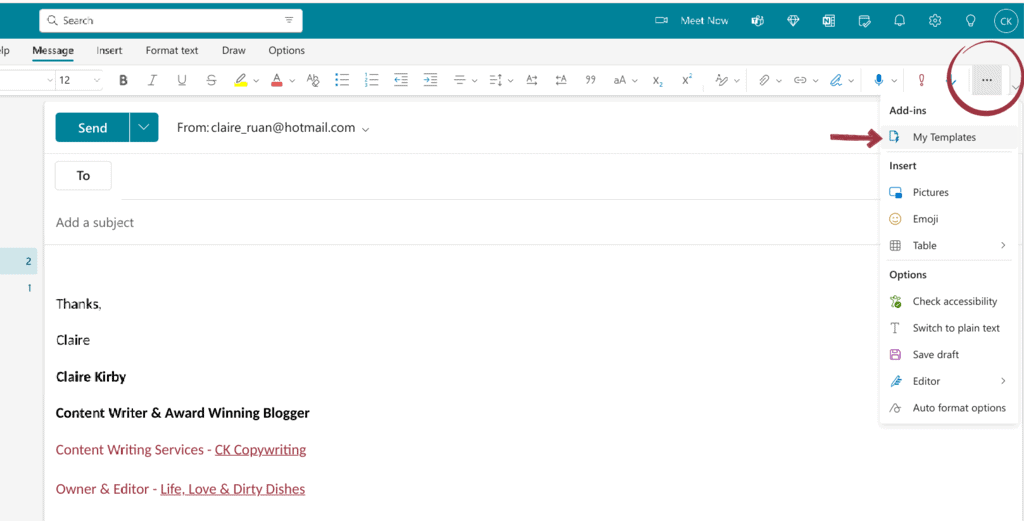
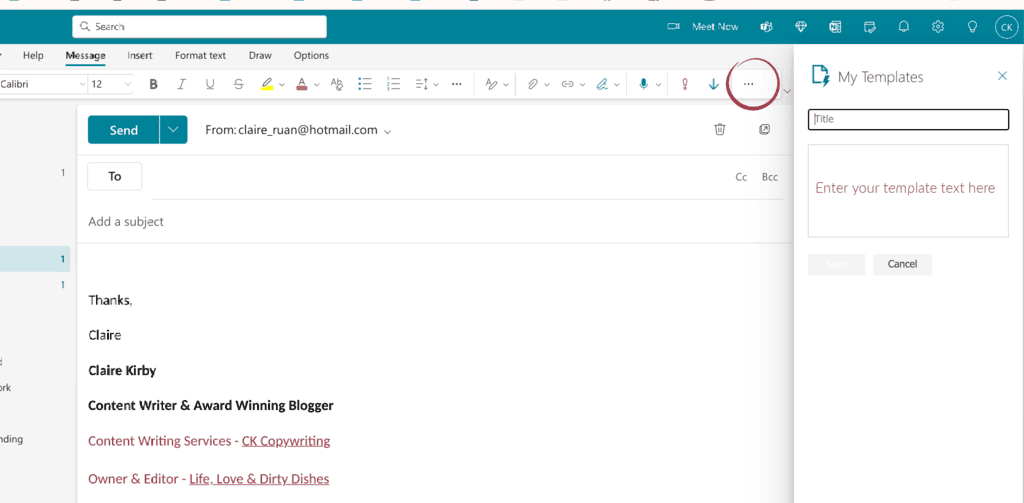
1 Select New email
2 Click in the email text box, then click the three dots and select ‘My Templates’
3 Click on the + Templates button to add your email text and then save.
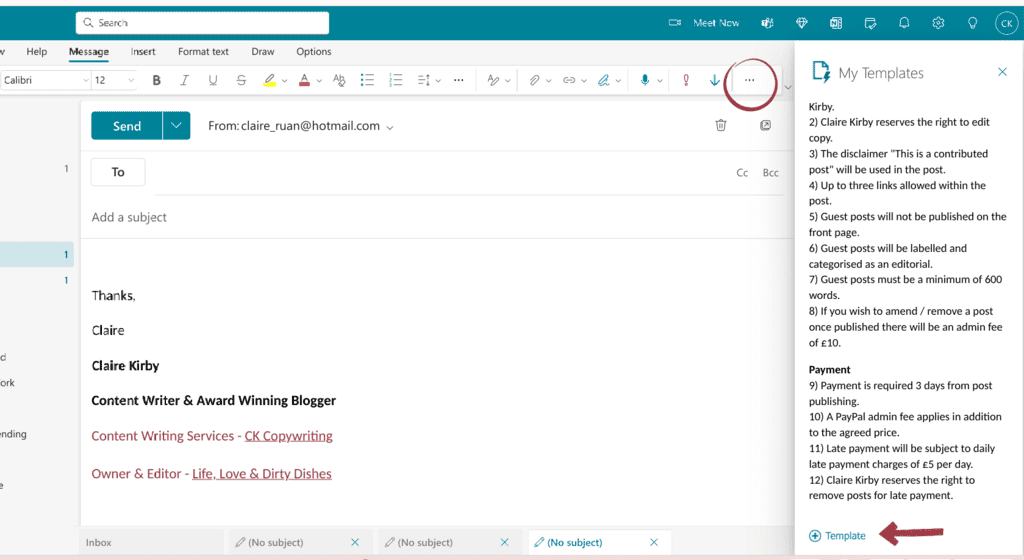
How to use the template
1 Select New email
2 Click in the email text box, then click the three dots and select ‘My Templates’
3 Select the template you want to use.
You can edit or delete templates using the buttons pictured below.
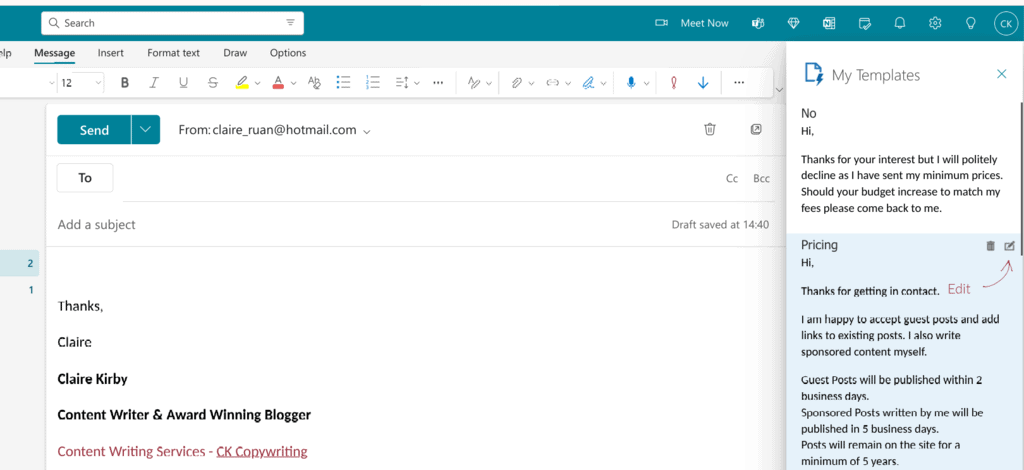
As I mentioned the downside to Outlook is that it will only let you save a small amount of templates. I use the templates for my most used responses, then as a work around I save my other templates as drafts and simply copy and paste as I need them. It’s not perfect, but it’s still a time saver.
How to create email templates in Gmail
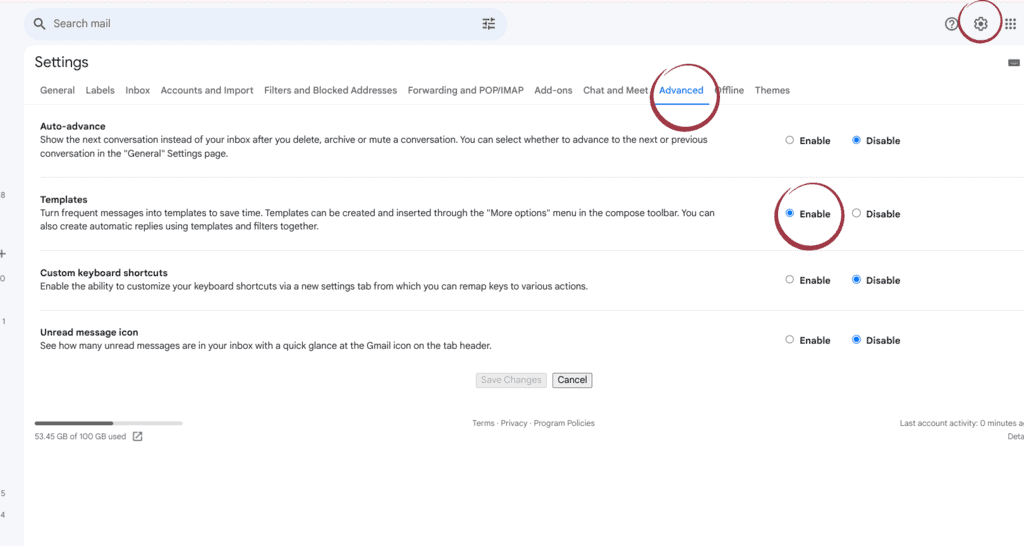
Before creating templates you will need to check your settings.
1 Click on the settings cog icon and select ‘see all settings’
2 Click advanced settings along the top menu
3 Under ‘Templates’ click enable
4 click save changes
Creating the template
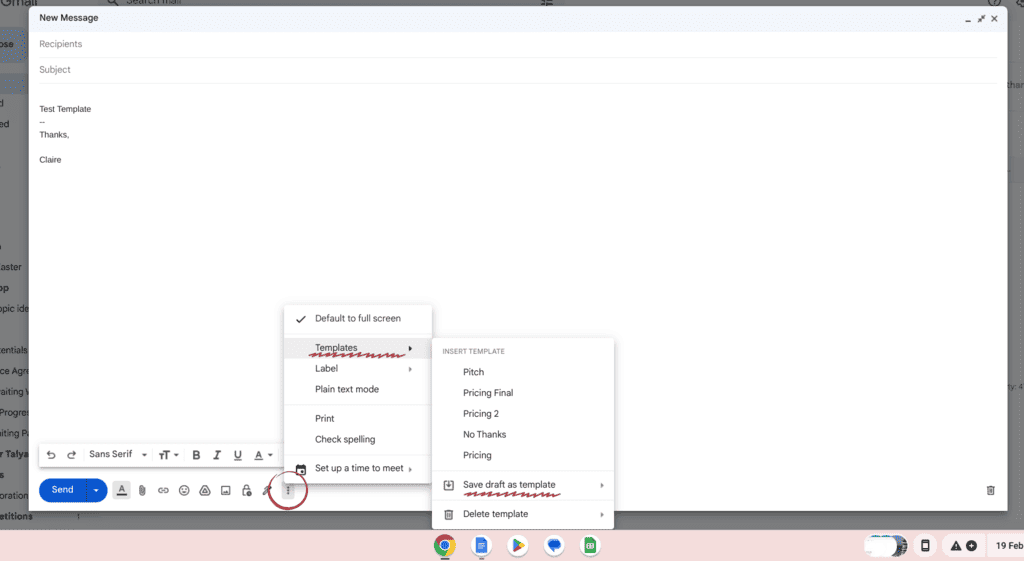
1 Select Compose
2 Write your email response
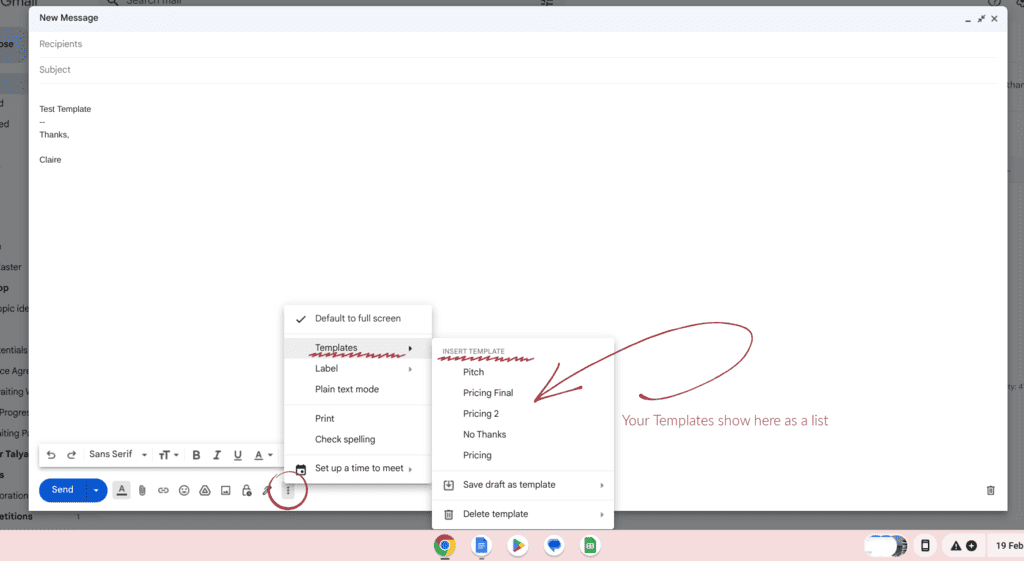
3 Click the three dots in the bottom menu and select ‘Templates’
4 Then ‘save draft as template’
How to use the template
1 Select Compose
2 Write your email response
3 Click the three dots in the bottom menu and select ‘Templates’ All of the templates you have created will appear in a box and just select the title of the one you want to use.
Email templates really are simple to create, easy to use, and save so much time.
Do you have any great time saving tips when it comes to managing your inbox? Share them in the comments below.
Other posts in this series…



Leave a Reply